GPT and similar cloud LLMs feel perfect. Right up to the moment they become a limitation.
They are powerful, easy to integrate, and constantly improving. For many apps, sending a request to an API and getting a smart response back is enough.
But sometimes it is not.
In this guide, we will show how to integrate a local LLM into a Flutter app and what to consider along the way.
Why Go (or Not) for Local LLM?
If you are handling sensitive information such as health data, internal company documents, financial details, or private user conversations, sending everything to the cloud is not always an option.
Even with secure APIs, some teams simply prefer not to move this data outside the device at all. Sometimes, keeping data directly on the phone can be a requirement rather than a mere preference.
There is also the performance factor. Large cloud models can sometimes feel slow, especially if the connection is unstable. And when your app depends entirely on the internet, any network issue directly affects the user experience.
A local LLM can solve these problems.
The model runs directly on the device, so it does not require a constant internet connection. The app can work fully offline. User data stays on the device.
Plus, you have more control over how information is processed, stored, and even adapted to your specific use case. Plus, you can adapt or customize the model to better match your product’s needs.
But there are trade-offs.
Local models are usually smaller than their cloud counterparts, which can affect response quality in complex tasks. Bigger on-device models require more memory and storage, increase app size, and may consume more battery. And while they remove network latency, large local models can still be slower than powerful cloud AI running on high-end servers.
Still, for privacy-focused, offline-first, or highly controlled environments, local LLMs are often the more practical solution.
How to Build Flutter Local AI: Flutter AI Toolkit and flutter_gemma Engine
When building a local LLM chat in Flutter, you usually need two things: a chat interface and a model engine that runs directly on the device. In our case, we used Flutter AI Toolkit for the UI layer and flutter_gemma as the local model engine.
Let’s break down how they work together.
Flutter AI Toolkit
The AI Toolkit is a set of AI chat-related widgets that make it easy to add an AI chat window to your Flutter app.
The AI Toolkit is organized around an abstract LLM provider API to make it easy to swap out the LLM provider that you'd like your chat provider to use. Out of the box, it comes with support for Firebase AI Logic.

If your goal is to run a model locally on the device, you cannot use FirebaseProvider directly. Flutter AI Toolkit currently ships only with that cloud-based provider.
To connect a local model, you need to implement your own custom provider.
Fortunately, FirebaseProvider serves as a well-structured reference implementation. The documentation even recommends using it as an example when creating a new provider. It clearly demonstrates how messages are passed, how streaming is handled, and how responses are returned to the UI.
There is also a community-maintained library that includes several additional providers, including a local one. In this case, it did not fully meet the project’s requirements, so I decided to create my own solution.
To make a custom provider, you must implement the abstract class LlmProvider.
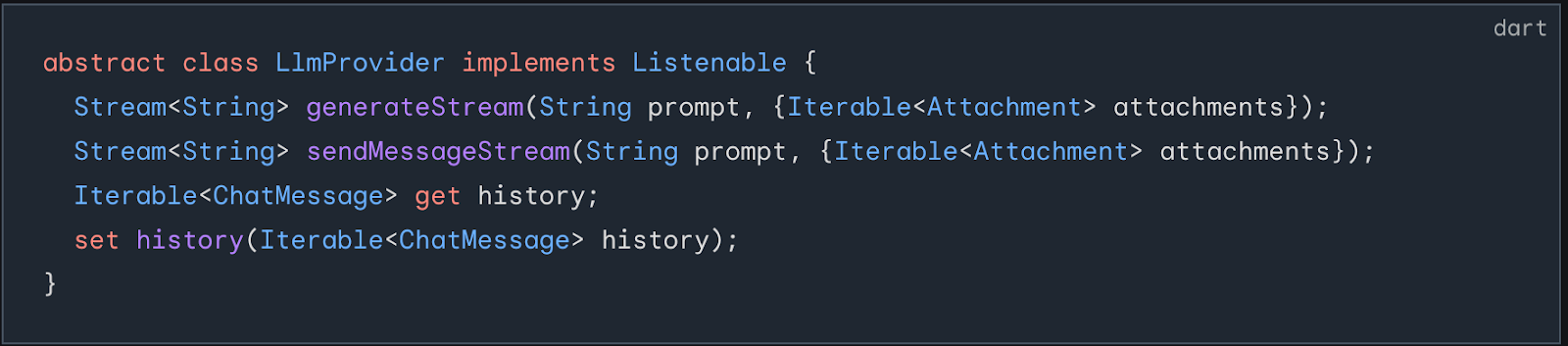
The main widget in Flutter AI Toolkit is LlmChatView. Beyond basic functionality, it allows you to customize:
- Welcome messages
- Styles and themes
- Suggested prompts
- Voice input (enable or disable)
- Attachments
- Other interaction settings
This makes it easy to adapt the chat experience to your specific product requirements.
flutter_gemma
You also need an engine capable of running models locally.
For this, I chose flutter_gemma.
flutter_gemma is a plugin that allows you to run models directly on the device. It supports loading different models, managing inference, and maintaining chat sessions locally.
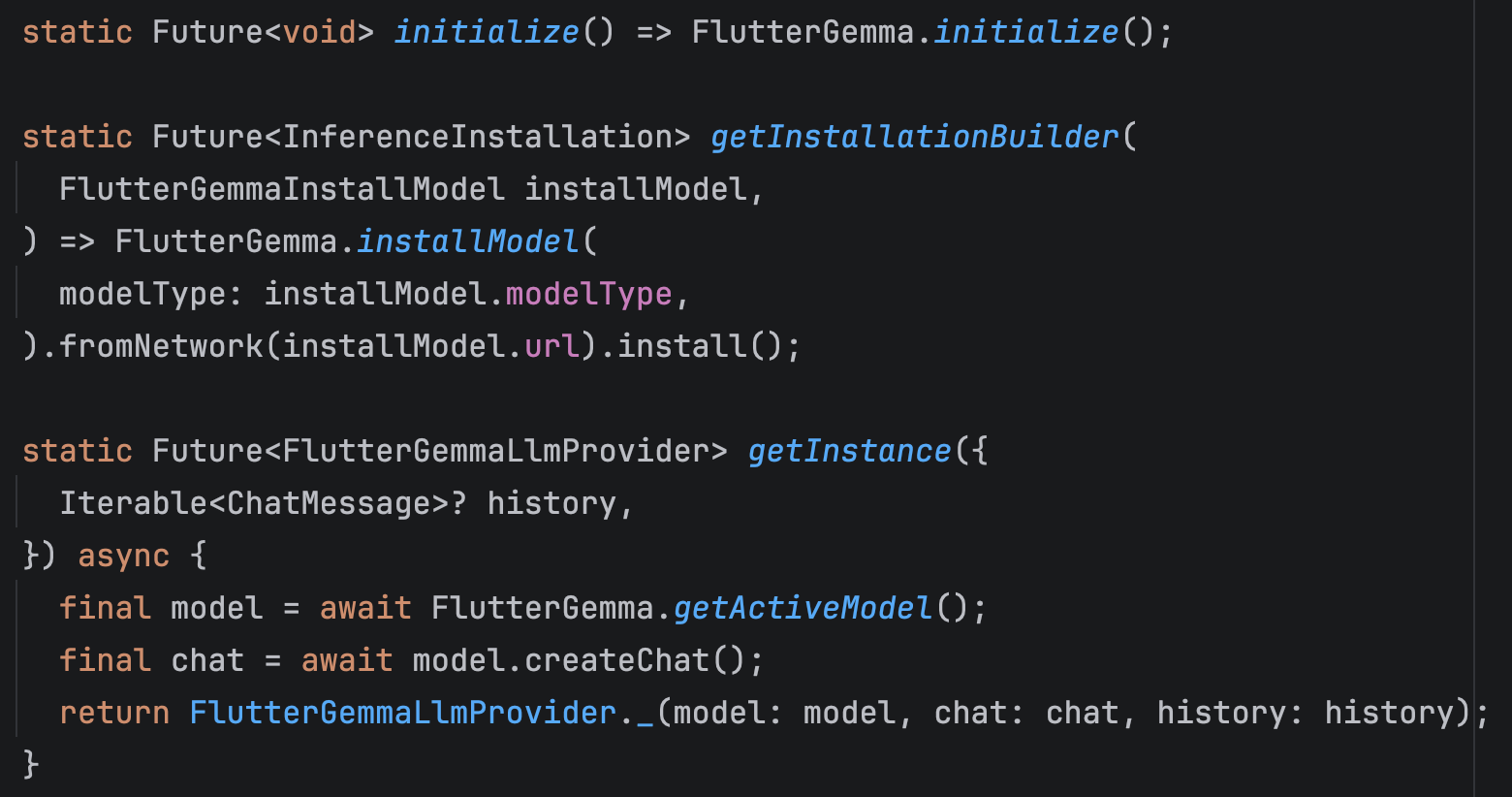
First, you install and initialize the model within your app. Next, you request the active model from the plugin. Then, you create a chat session based on that model.
From that point forward, all interaction happens through the created chat session.
Implementing sendMessageStream: Where the Model Interaction Happens
One of the key methods you need to implement inside LlmProvider is sendMessageStream. Even though the documentation describes it quite briefly, this is actually the core of the entire interaction flow.
This method is responsible for:
- Processing the user’s prompt
- Interacting with the model
- Generating the model’s response
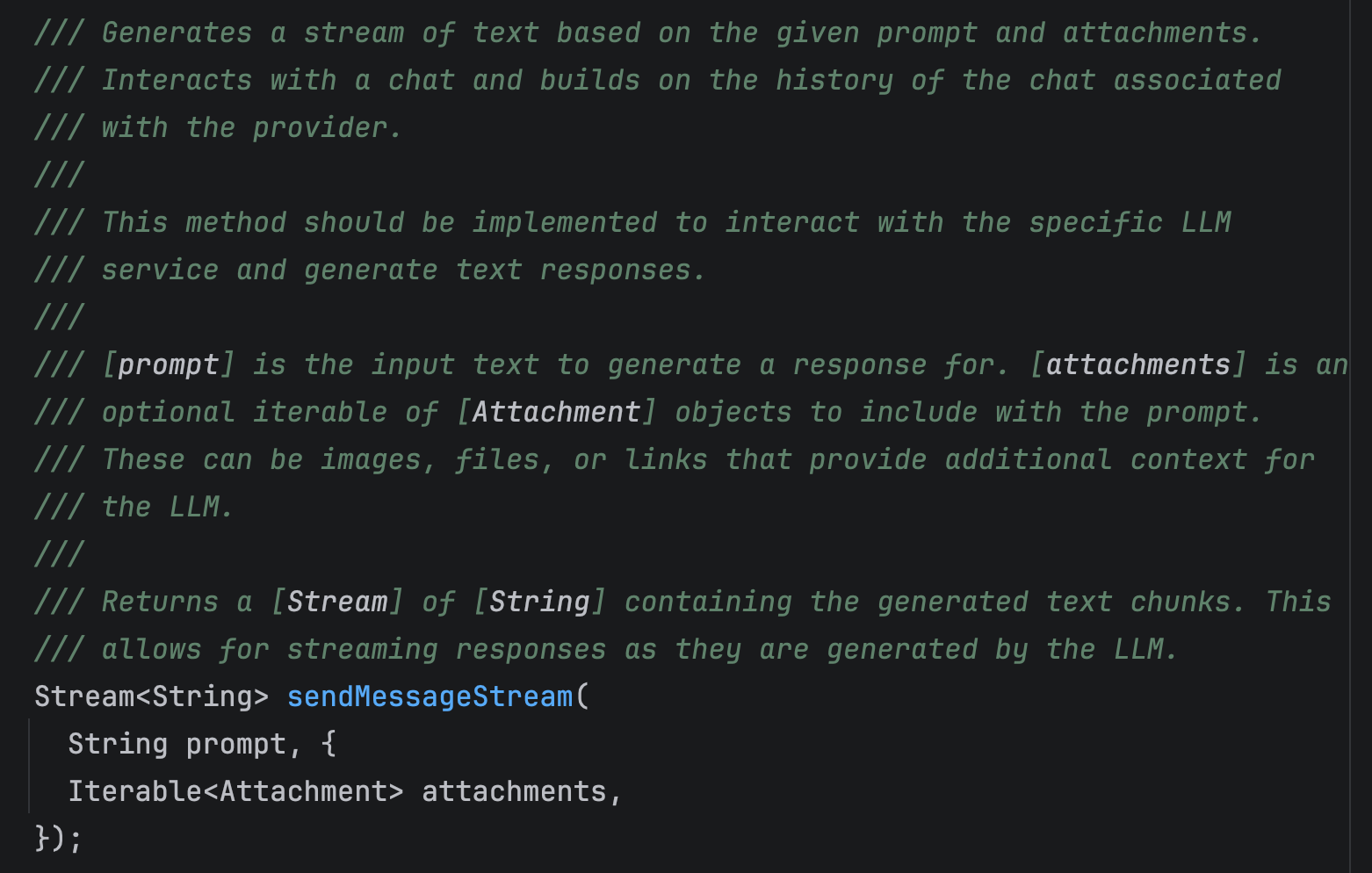
When sendMessageStream is called, two messages are created: one from the user and one from the model. Both messages are added to the chat history.
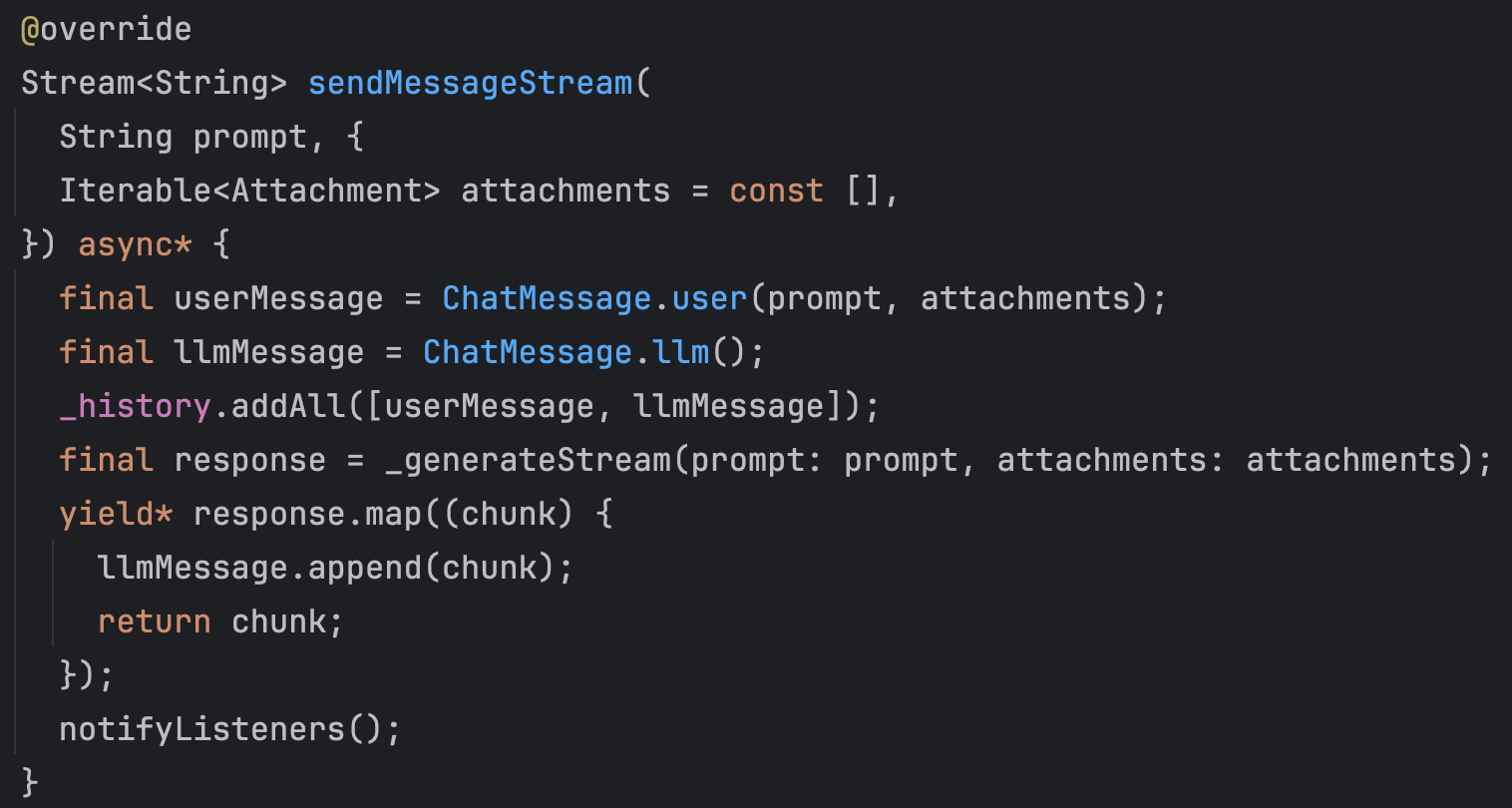
Next, the model’s response generation begins. In my implementation, this happens in a separate method called _generateStream (I will go into more detail about it in the next section).
The model does not generate the full response at once. Instead, it produces it in chunks.
Each generated chunk is recorded in the model’s message in the chat history andtransmitted through the sendMessageStream stream.
These streamed chunks are then picked up by LlmChatView, which renders them on the UI. That is why the response appears as if it is being typed in real time.
As for the _generateStream method this is where the actual request is sent to the model, and the response generation happens.
Inside this method, the Message is passed to the chat engine using addQuery. This is the point where the model receives the user input and starts generating a response.
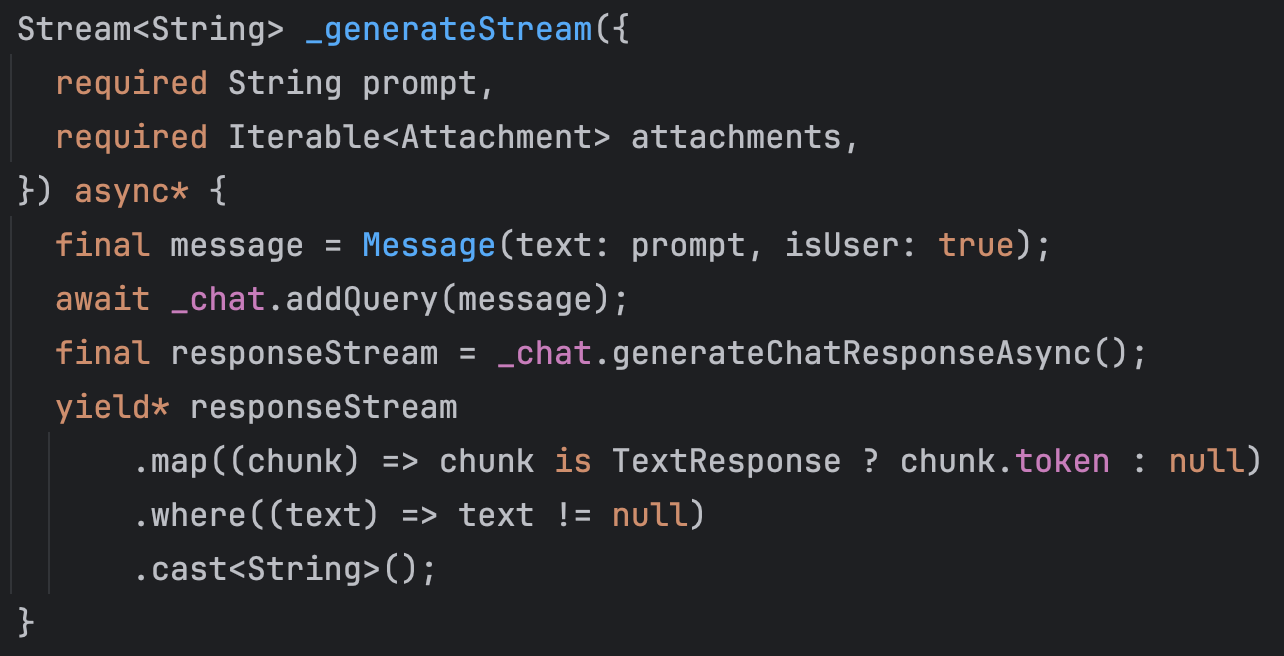
The model then produces the output in chunks, and these chunks are passed back to the previously described sendMessageStream method.
From there, as explained earlier, each chunk is appended to the model’s message in the chat history and emitted through the stream to the UI.
How Does a Local LLM App with Flutter Look Like: A Short Demo
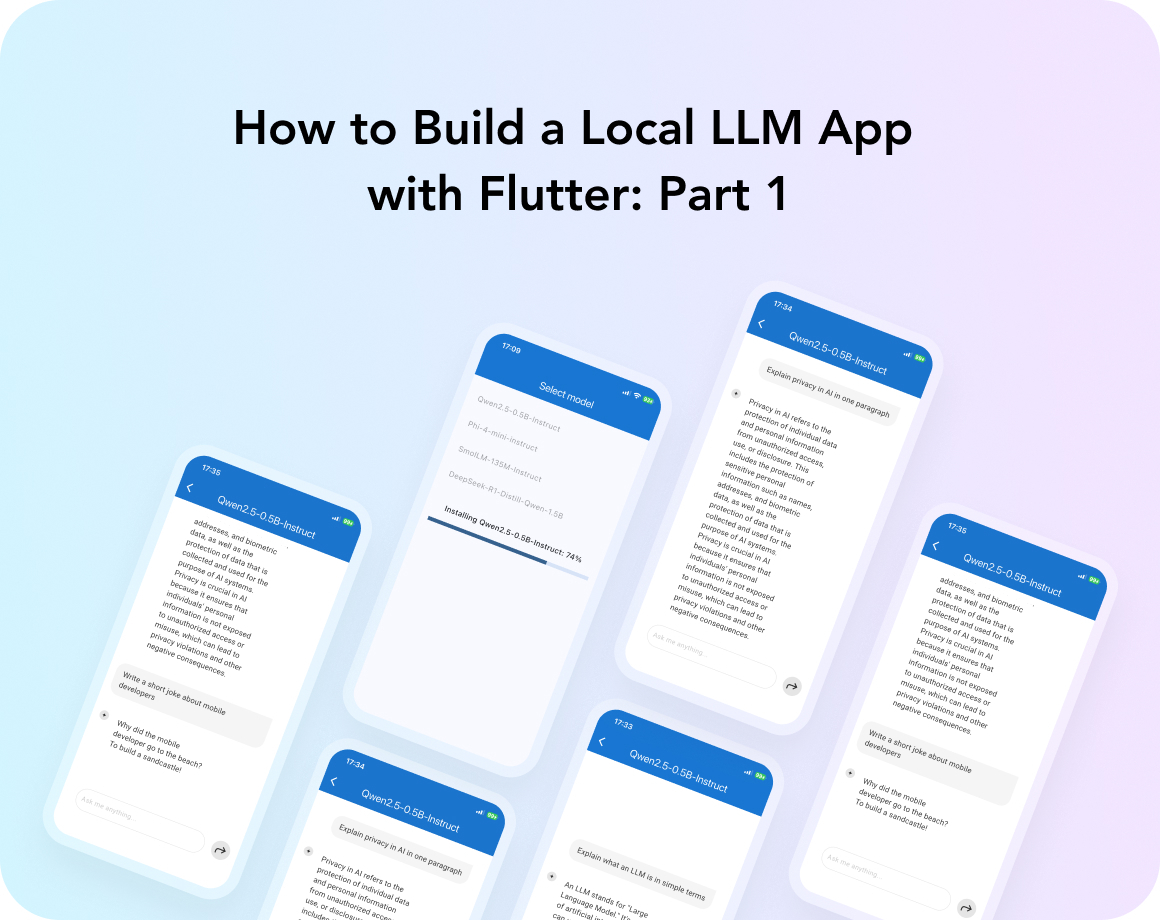
Here’s what you’ve been waiting to see this whole time: the final look of our work.
There are a few things to mention about the models’ performance. Overall, I tested four models.
Based on the demo results, Qwen 2.5 delivered the strongest performance. It worked quickly, produced generally accurate responses, and rarely got confused.
In contrast, SmolLM often generated obvious nonsense and struggled with consistency. Even for a simple prompt like “Name 5 fruits,” it could provide a correct list and then endlessly repeat the last word until the response length limit was reached. The model went like “Apple, banana, orange, mango, pear, pear, pear, pear….” You got the point.
The other two models, Phi 4 mini and DeepSeek R1, had a bit of a different issue, as both models performed very slowly during testing on an iPhone 12 and a Samsung Galaxy S21.
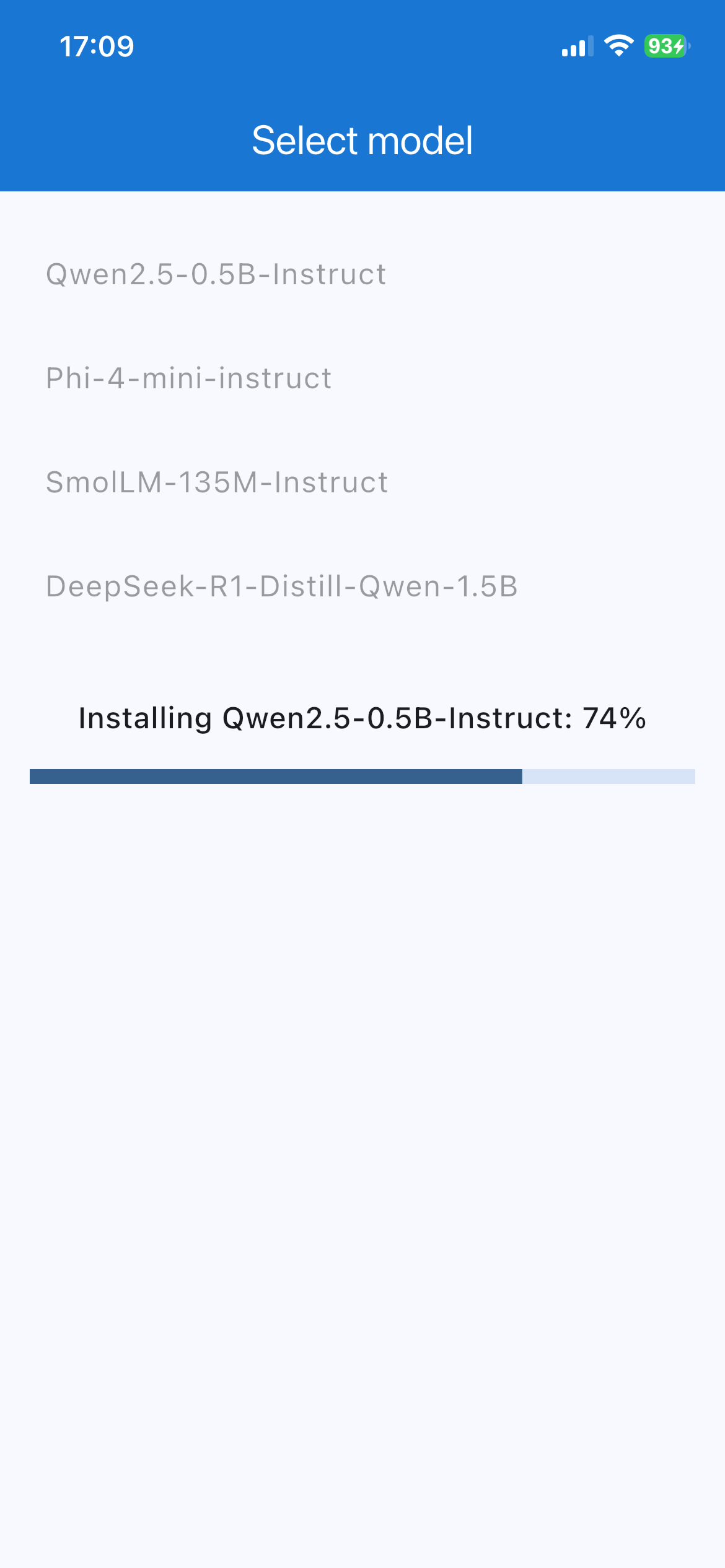
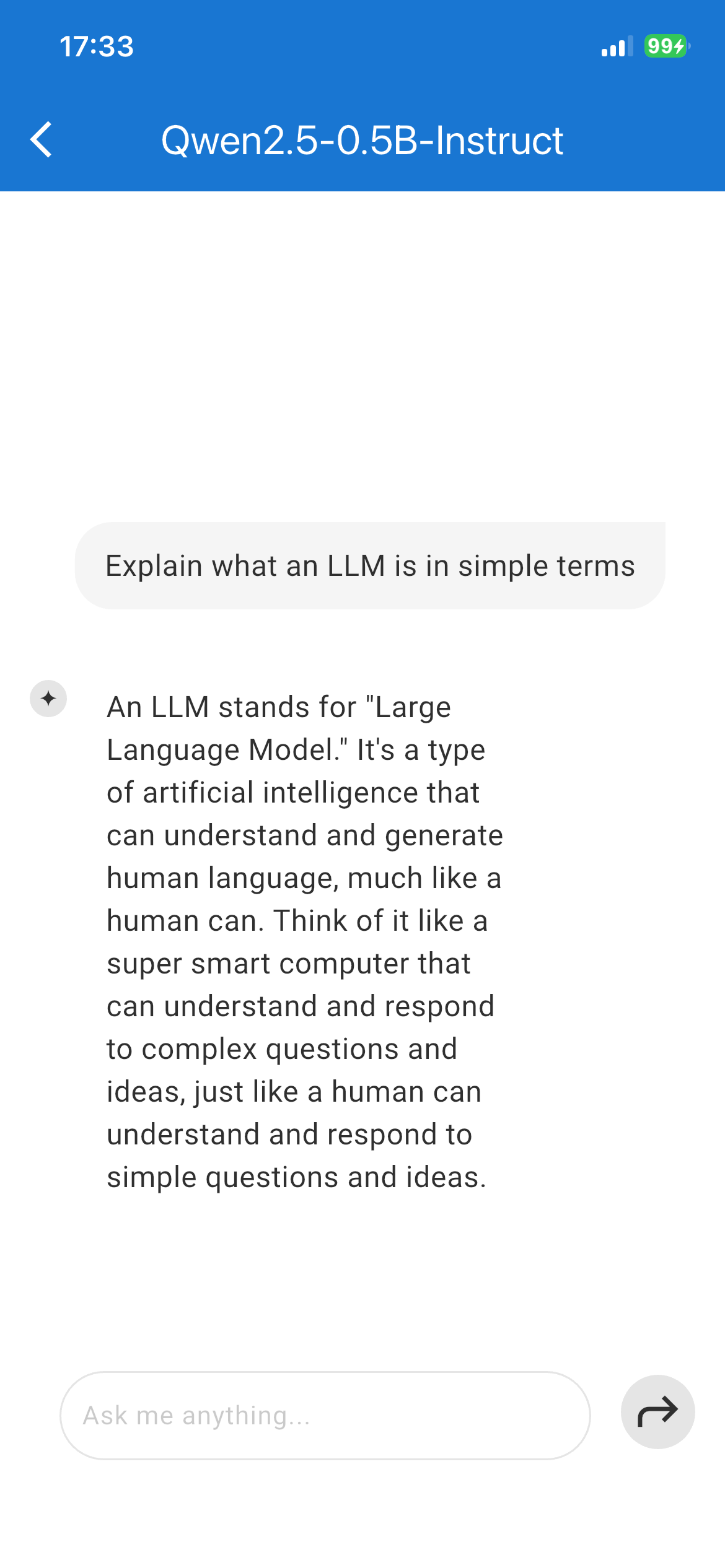
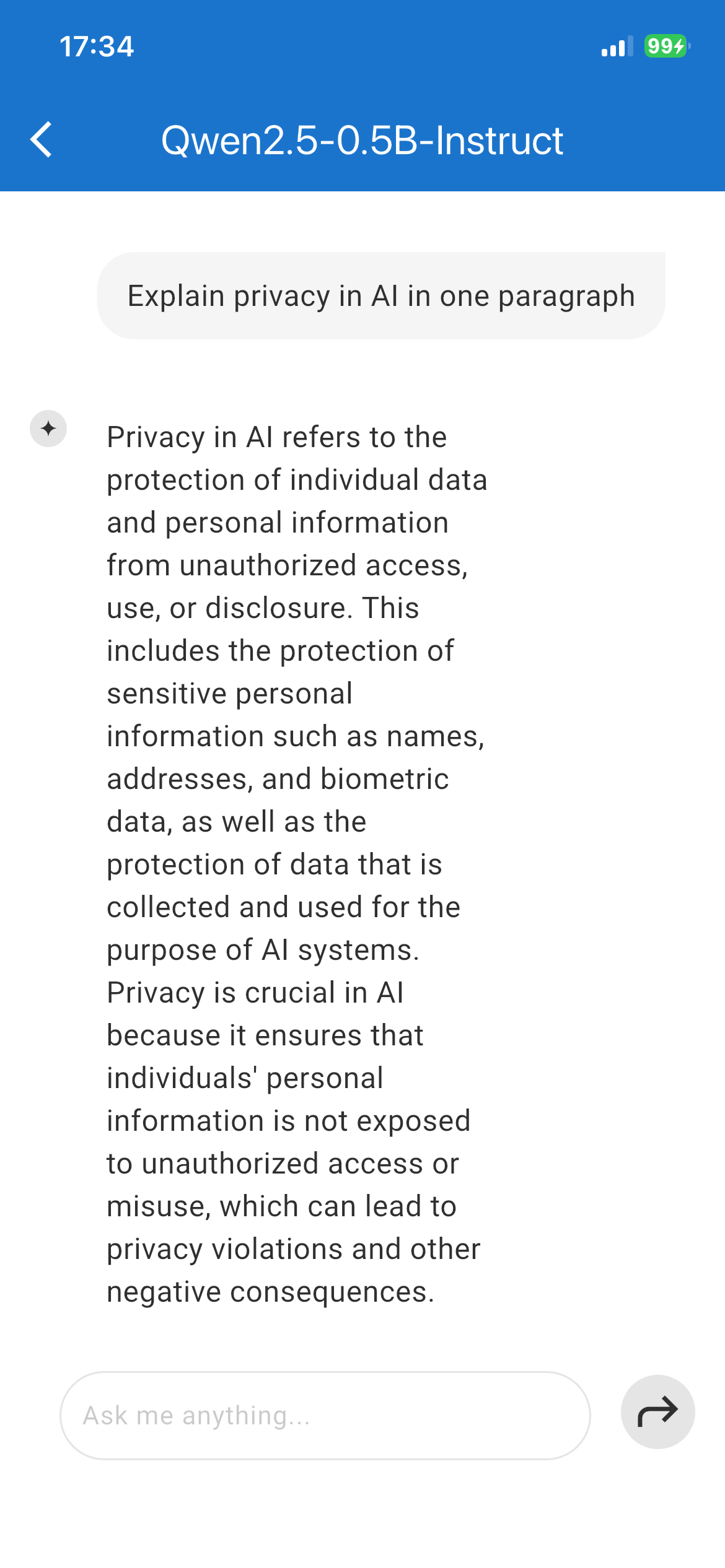
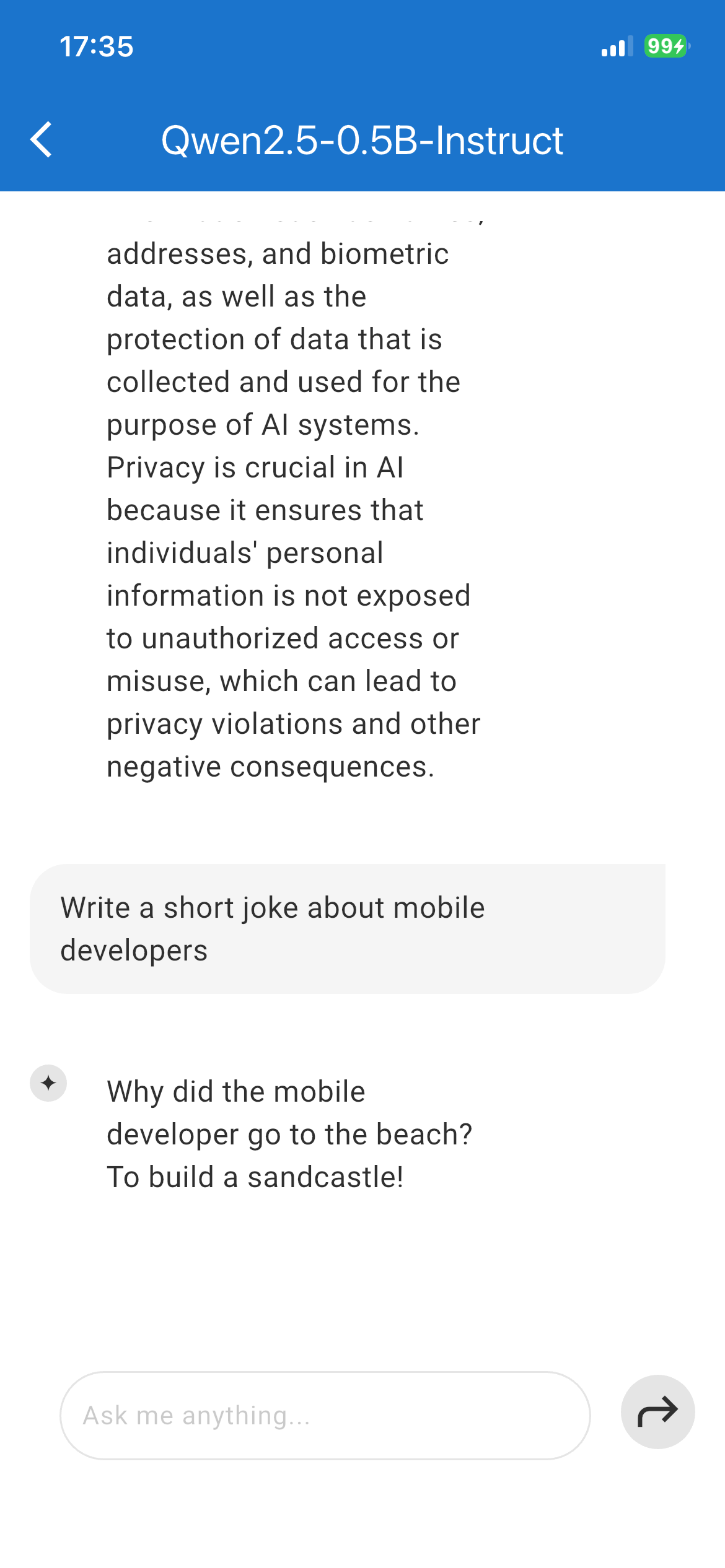
Qwen 2.5 LLM
Native Solutions to Consider
Of course, Flutter isn’t the only way to create a local LLM app (but it might be the best one for some 😉). There are options for native app development of a local LLM, too.
Each option offers different levels of optimization, hardware integration, and control over on-device inference.
On Android, developers can use:
- Google AI Edge / MediaPipe LLM Inference API
- ai-core as a lightweight LLM runtime wrapper
On iOS, the main options include:
- Apple Core ML
- Apple MLX for LLM integration on Apple devices
For both Android and iOS, these solutions are available:
- TensorFlow Lite
- PyTorch Mobile
- llama.cpp is a C and C++ based foundation for efficient local LLM inference across environments
These tools make it entirely possible to build secure, fully on-device LLM applications without touching the cloud. The native landscape is wide enough to match almost any developer’s coding taste and comfort zone.
Stay Tuned: Next Steps for Local LLM App
You know what the best part is? I have one more part to share with you! That’s right: today I shared the basics of creating a local LLM app with Flutter, so you can set up your very first local LLM.
Next time, I will explore how to use RAG (Retrieval-Augmented Generation) for giving our LLM some extra context for answer generation. I will show you how to integrate PDF files to be “seen” and used by LLM for referring to them for accurate answers. Till then!
Or, if you need any tech help or consultation, feel free to reach out to discuss your idea!